> ## Documentation Index
> Fetch the complete documentation index at: https://anam.ai/docs/llms.txt
> Use this file to discover all available pages before exploring further.
# Video Options
> Configure session video dimensions and initial video quality.
Use `sessionOptions` when creating a session token to configure video behavior for a session.
```typescript theme={"system"}
const response = await fetch("https://api.anam.ai/v1/auth/session-token", {
method: "POST",
headers: {
Authorization: `Bearer ${process.env.ANAM_API_KEY}`,
"Content-Type": "application/json",
},
body: JSON.stringify({
personaConfig: {
...personaConfig,
// For example: avatarId, avatarModel, voiceId, llmId, and systemPrompt.
},
sessionOptions: {
videoWidth: 1152,
videoHeight: 768,
videoQuality: "auto",
},
}),
});
```
## Video dimensions
Set `videoWidth` and `videoHeight` together when you want to request a specific supported output size. Omit both fields to use the selected avatar model's default output size.
| Avatar model | Default output when omitted | Explicit sizes supported today |
| -------------------- | --------------------------- | ------------------------------ |
| Cara 3 | `720x480` | `720x480` |
| Cara 4 Stable/Latest | `1152x768` | `1152x768`, `768x1152` |
Cara 4 supports landscape output at `1152x768` and portrait output at `768x1152`. Use landscape output for desktop and embedded web experiences. Use portrait output for mobile-first or vertical layouts. If you provide one dimension field, you must provide both.
If you omit `videoWidth` and `videoHeight`, Anam uses the selected avatar model's default output size.
## How avatar crops work
Cara 4 avatars use a larger square source image. At session start, Anam takes a centered crop from that square source to produce the requested video frame.
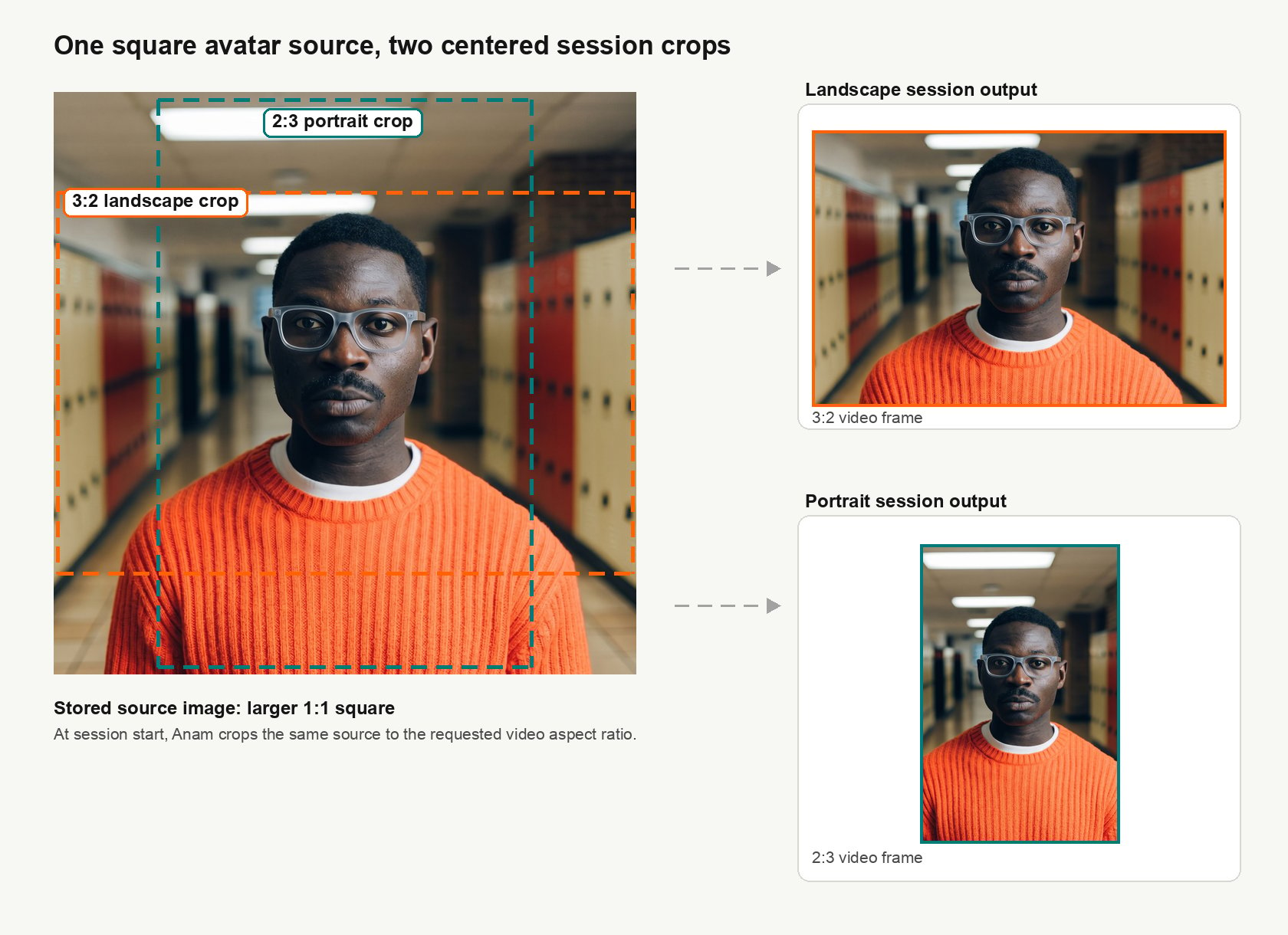 You do not need separate avatars for the two Cara 4 outputs. The same square source can be cropped to `1152x768` or `768x1152`.
For uploaded images, webcam captures, and existing custom avatars that are migrated to the Cara 4 source format, Anam may use padding, cropping, or outpainting when the source does not naturally cover both crops. This helps preserve compatibility for older non-square avatar images while still producing the requested session frame.
## Video quality
`videoQuality` controls the initial video bitrate profile for the session.
| Value | Behavior |
| ------ | ------------------------------------------------- |
| `auto` | Uses Anam's default adaptive video behavior. |
| `high` | Starts the session with the high bitrate profile. |
If you omit `videoQuality`, Anam uses the default behavior.
## Errors
Anam rejects unsupported combinations instead of silently falling back.
For example, requesting portrait dimensions for a Cara 3 avatar returns a validation error. Requesting any unsupported width and height combination also returns a validation error.
You do not need separate avatars for the two Cara 4 outputs. The same square source can be cropped to `1152x768` or `768x1152`.
For uploaded images, webcam captures, and existing custom avatars that are migrated to the Cara 4 source format, Anam may use padding, cropping, or outpainting when the source does not naturally cover both crops. This helps preserve compatibility for older non-square avatar images while still producing the requested session frame.
## Video quality
`videoQuality` controls the initial video bitrate profile for the session.
| Value | Behavior |
| ------ | ------------------------------------------------- |
| `auto` | Uses Anam's default adaptive video behavior. |
| `high` | Starts the session with the high bitrate profile. |
If you omit `videoQuality`, Anam uses the default behavior.
## Errors
Anam rejects unsupported combinations instead of silently falling back.
For example, requesting portrait dimensions for a Cara 3 avatar returns a validation error. Requesting any unsupported width and height combination also returns a validation error.