Technical specifications and source image guidelines for creating custom avatars with Cara 4.
This page is for Cara 4 custom avatars, not Cara 3. Cara 3 follows similar pose and background guidance, but it uses different source image constraints.
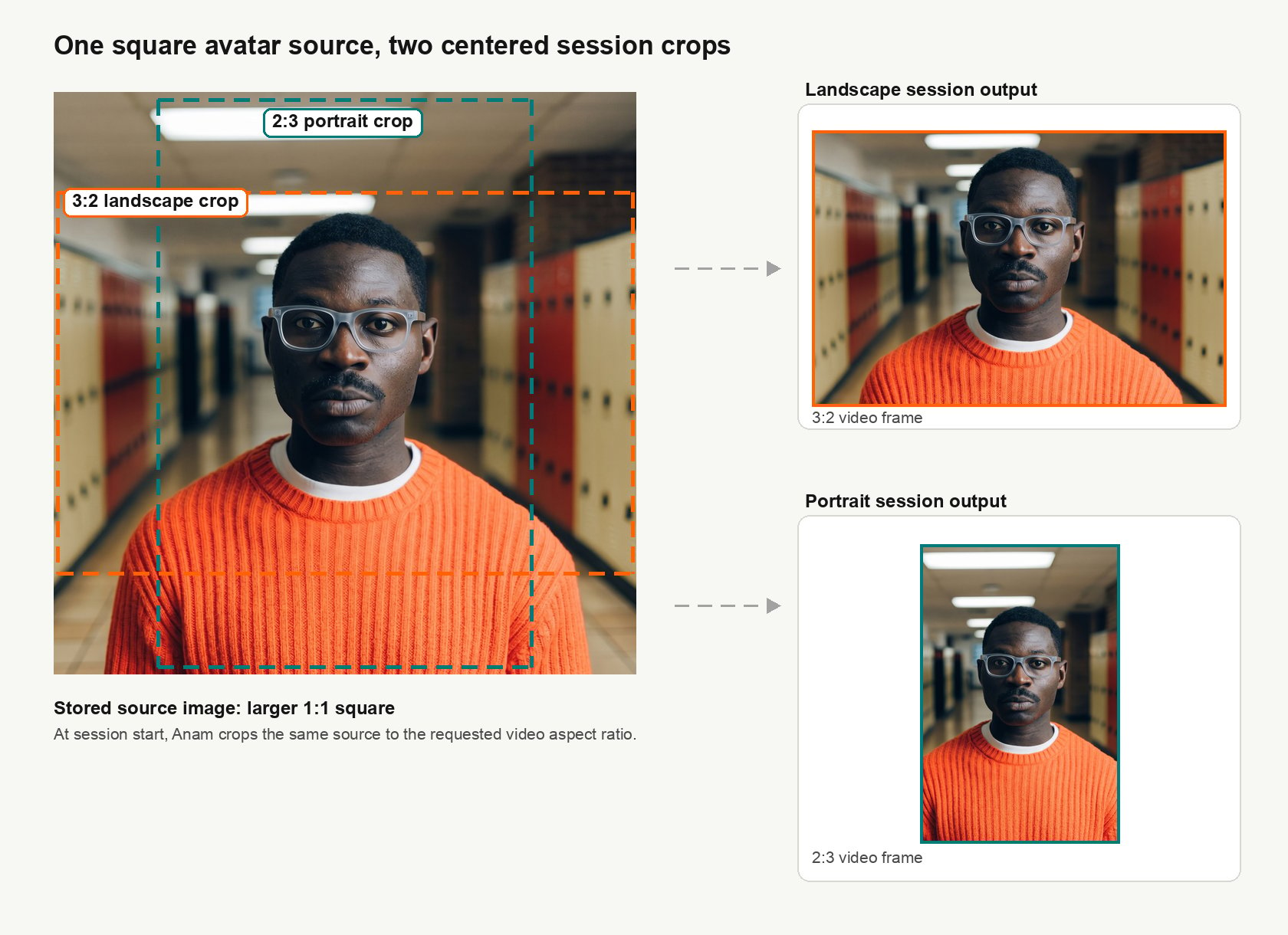
Cara 4 uses a square source image that can be cropped into landscape and portrait video. The safest upload is a high-resolution square image with clear margins around the subject.
See Models for when to use cara-4 and Video Options for supported output sizes.
Format: Use .png, .jpg/.jpeg, or .webp, up to 4.5MB.
Resolution: Use at least 1152x1152. Higher resolution is better.
Margins: Leave room around the head, shoulders, and chest so Anam can crop in for landscape or portrait output instead of extending the image with outpainting.
Automatic fixes: Anam may crop, pad, or outpaint when the source image does not cover the required crop. Do not rely on this for best quality.
To place an avatar over your own UI, create a custom avatar from an image with a consistent green background. In your browser app, render the avatar stream to a video element, use a WebGL canvas to remove the green pixels, then place the transparent canvas over your page. The stream contains the green background; your app removes it during rendering.Choose an avatar without green clothing or green spill around the subject. Fine details such as complex hair can be difficult to key cleanly. See the transparent avatar backgrounds cookbook for a working example and controls for tuning the result.
Last modified on September 28, 2026
Was this page helpful?
Assistant
Responses are generated using AI and may contain mistakes.