

Choose how to add a voice
Clone or upload a voice in Lab
Sign in to Anam Lab and open the persona you want to update.1
Open the cloning screen
Select the Voice tab, then Record or upload. The cloning screen supports both recording and uploading audio.
2
Record or upload audio
Choose the language and accent, then select Start recording to record a sample with your microphone, or Upload audio file to use an existing recording.For microphone recording, read the displayed script for 10–15 seconds. The recorder stops automatically at 15 seconds. Review your sample, then select Continue.
3
Name and clone the voice
Enter a Voice name and any other details, then select Clone voice and listen to the preview.
4
Use the voice
Select Use this voice to assign the clone to your persona, then Publish to apply the change.
Lab audio requirements
- Upload WAV, MP3/MPEG, MP4/M4A, WebM, or OGG audio.
- The file must be at least 10 KB and no larger than 50 MB (10,240–52,428,800 bytes).
- The 15-second limit applies to the in-browser recorder, not to uploaded file duration. Uploaded files still need to pass file validation and the voice provider’s processing checks.
Import a provider voice in Lab
Select the Voice tab, then Import from provider. Lab asks two questions and then shows the one way your voice can reach Anam:- Where is the voice from? ElevenLabs or Cartesia. Fish Audio appears where it’s enabled for your organization.
- What kind of voice is it? For ElevenLabs: Voice Library voice, Professional Voice Clone or Instant clone or designed voice. Every Cartesia voice imports the same way, so for Cartesia Lab asks How do you want to import it? instead.
Import ElevenLabs voices
The method depends on what kind of voice it is.Public Voice Library voices
In Lab, choose ElevenLabs, then Voice Library voice. Paste the voice ID or a Voice Library link, pick the Voice model, and select Validate. When the preview is ready, name the voice and select Save voice. ElevenLabs’ default voices import the same way. The first import of a Voice Library voice can take about a minute while ElevenLabs adds it to Anam’s account.Share a Professional Voice Clone by link
A Professional Voice Clone can be shared with Anam by link. Anam’s own ElevenLabs account then speaks it, so it works on personas with Zero Data Retention.1
Turn on link sharing in ElevenLabs
In ElevenLabs, open My Voices, find the voice and select More actions (three dots), then Share Voice. Turn on Anyone with the link and copy the link.
2
Import the link in Lab
In Lab, choose ElevenLabs, then Professional Voice Clone. Paste the link into ElevenLabs share link and select Add & check. Lab adds the voice to Anam’s ElevenLabs account and shows which models it’s fine-tuned for.
3
Pick a model and import
Choose the Voice model, adjust the name if you want, and select Import. If you already have the voice on that model, the button reads Refresh preview and regenerates its preview instead of creating another voice.
A shared voice can be used by one Anam organization. Turning off link sharing in ElevenLabs later doesn’t remove Anam’s copy; contact Anam Support to have it removed.
Use your own ElevenLabs API key
Instant clones and Voice Design voices stay in the ElevenLabs account that made them, and ElevenLabs doesn’t let them be shared outside it. To use them, save your organization’s ElevenLabs API key in Anam. Anam then speaks those voices with your key, so you never share them. In Lab, your own key is for instant clones and Voice Design voices; a Professional Voice Clone in your account offers Use share link instead. To use one of your own Professional Voice Clones with your key, import it with the API (useOrganizationKey). You can also save the key with the API (manage your ElevenLabs key).
1
Choose the voice kind
In Lab, choose ElevenLabs, then Instant clone or designed voice.
2
Connect your ElevenLabs account
Select Sign in with ElevenLabs, or Use an API key instead and paste a key with Voices read and Text to Speech access. Lab lists the voices in your account.
3
Save the key and use the voice
Select Use your key on the voice. The first time, the Use your ElevenLabs API key dialog saves your organization’s key: paste it, or keep the key you connected with, and select Save key and use. Lab checks the voice with a preview; then name it and select Save voice.
- In Lab, only organization owners and admins can save or remove the key. Other members can use voices that speak with it, and are asked to have an owner or admin add it when none is saved. Over the API, an API key with
voices:writeaccess can save or remove it. - The saved key needs Text to Speech access. A key you paste to browse your voices in Lab also needs Voices read. Keys from ElevenLabs data-residency workspaces work; Anam uses the host that accepts the key.
- Speech for these voices runs on your ElevenLabs plan, and ElevenLabs bills it there.
- Your saved key shows under the voice list as its last four characters, with Remove. Removing it blocks new sessions and previews with the voices that use it until you save a key again, and the voice list marks those voices Needs your ElevenLabs API key. Sessions that already started keep running. Removing the key in Anam doesn’t revoke it in ElevenLabs; delete it there if you no longer need it.
- Voices on your own key can’t be used on personas with Zero Data Retention, because the speech runs through your ElevenLabs account and its retention settings. ElevenLabs offers zero retention on its enterprise plans. If you need ZDR with your own voices, contact Anam Support.
- Voices on your own key need a Cara 4 avatar. A session with an older avatar fails with
400and asks you to choose a Cara 4 avatar or another voice.
Import Cartesia voices
A Cartesia library voice imports by its voice ID. A voice you made in Cartesia must be set to Shared first.1
Share the voice in Cartesia
Open the voice’s sharing settings and select Shared. Cartesia describes this setting as Anyone with the voice ID can use it.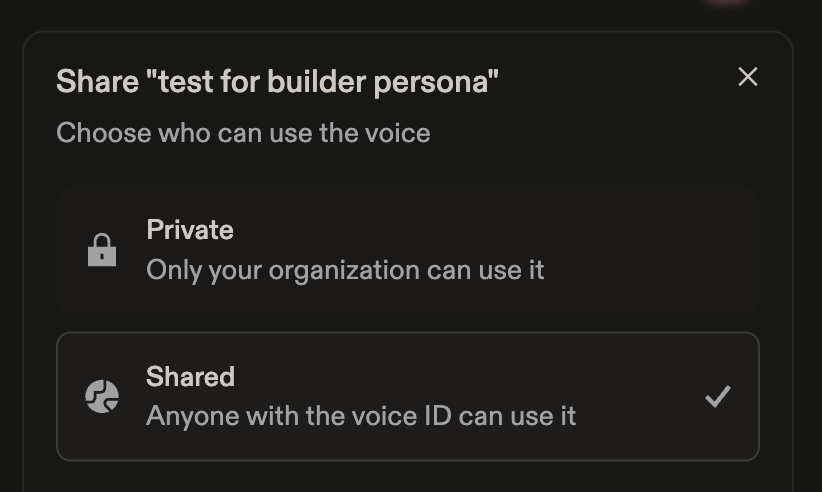
2
Import the voice in Lab
In Lab, choose Cartesia, then Paste a voice ID. Paste the voice ID or a
play.cartesia.ai voice link, select Validate, then Save voice.Import voices with the API
POST /v1/voice-imports imports an existing provider voice. Anam generates a real preview before it saves the voice, so a successful response means the voice works. Use an API key with voices:write access.
Imports are slow, so set your client’s timeout above 120 seconds. A voice ID import spends up to 5 seconds reading the voice’s details and up to 90 seconds generating the preview. A share-link import can take up to 110 seconds, and the endpoint allows 120 seconds in total. If your client gives up early, the import can still finish and create the voice: list your voices with GET /v1/voices before you retry a voice ID import, so you don’t create a duplicate. Retrying a share-link import doesn’t create a duplicate; it refreshes the voice.
Send one of three inputs, depending on the kind of voice:
Import by voice ID
cURL
providerModelId to use the provider’s default model. Omit displayName and description to take them from the provider. A successful request returns 201 with the new voice and a Location header. Repeating a request creates another voice.
Manage your ElevenLabs key with the API
Save your organization’s ElevenLabs API key once, then import voices that speak with it. A key you save this way only needs Text to Speech access.cURL
Each request returns the key’s status, never the key itself:
Response
enabled is always true. hint is the key’s last four characters, and voiceCount is how many voices speak with it. Saves are limited to 10 per organization per hour, counting saves made in Lab.
Import with your own ElevenLabs key
After you’ve saved a key, import any voice it can reach:cURL
useOrganizationKey works only with provider: "ELEVENLABS" and a providerVoiceId. The request returns 201 with the new voice and a Location header. The voice has isZdr: false, so personas with Zero Data Retention can’t use it, and ElevenLabs bills its speech to the account the key belongs to.
Import with an ElevenLabs share link
cURL
shareUrl, you can also send provider ("ELEVENLABS", or omit it), providerModelId and displayName. Any other field returns 400 invalid_request, and details.issues lists the fields you can send. The voice speaks with Anam’s ElevenLabs account, so it works on personas with Zero Data Retention.
The response is 201 with the new voice and a Location header. If your organization already has this voice on the requested model, speaking with Anam’s ElevenLabs account, Anam regenerates its preview, applies any displayName, and returns that voice with 200. A copy of the same voice imported with useOrganizationKey doesn’t count.
Handle import errors
Every error returns JSON with a stablecode, a message, retryable and a requestId. Two fields are optional:
details.issuesappears when the body fails validation. The top-levelmessageis then justRequest validation failed, and each issue has apathand amessagethat says what to change.docsUrlappears on errors with a page that explains the fix, such asvoice_not_accessibleand theorganization_key_*errors. Don’t rely on it being present.
invalid_request, so tell them apart by status:
The other codes:
If you’re building an integration or an agent that imports voices:
- Branch on
code, not onmessage.messagecan change wording; codes don’t. - Retry only when
retryableistrue, with a backoff. - On
voice_not_accessible, don’t retry the same request. Ask which kind of voice it is, or use the table above to pickshareUrloruseOrganizationKey. - On
organization_key_missingororganization_key_rejected, save a key withPUT /v1/voices/elevenlabs-key, then retry the import. - Show
messageto the person who supplied the voice. Whendetails.issuesis present, show each issue’smessageinstead; the top-level one is generic. - Set a client timeout above 120 seconds. If a voice ID import times out on your side, list your voices before retrying it.
Create a voice with the API
Use create voice for programmatic cloning. The API supports audio sent as multipart form data or an uploaded audio reference. For larger audio uploads, use create voice presigned upload, upload the audio to the returned URL, then pass the returnedaudioKey to create voice. Follow the API reference’s upload requirements rather than assuming the Lab file formats and limits apply to the API.
Next Steps
Avatar Gallery
Browse available avatars to pair with your voice
Persona Configuration
Learn more about configuring personas
Prompting Guide
Write effective system prompts for multilingual personas
Authentication
Understand session token creation